

Google Classroom for Remote and Blended Learning
Google Classroom is Google’s free online learning platform for creating classes, sharing assignments, grading, and messaging students in one place. It runs in any browser and on iOS and Android.
Remote and blended learning are now standard, and teachers everywhere need tools that make a virtual classroom work as well as the room down the hall. Replicating the in-person experience takes the right distance-learning tools and programs.
That task is made easier with Google Classroom. Google Classroom is an online tool designed to streamline the distribution and marking of assignments and make the entire process paperless. Its tight integration with Google Drive, Docs, Sheets, Slides, and Gmail makes it straightforward to move an in-person lesson into a virtual learning environment.
Key takeaways
- Free with any Google account; ties into Drive, Docs, Forms, Meet, and Calendar.
- Personal accounts cap a class at 250 members; Education accounts allow 1,000.
- Gemini in Classroom adds 30+ no-cost AI tools for teachers in every Education edition.
- It fits K-12 schools and smaller cohorts best; universities will outgrow its admin controls.
Google Classroom Features for Online Learning
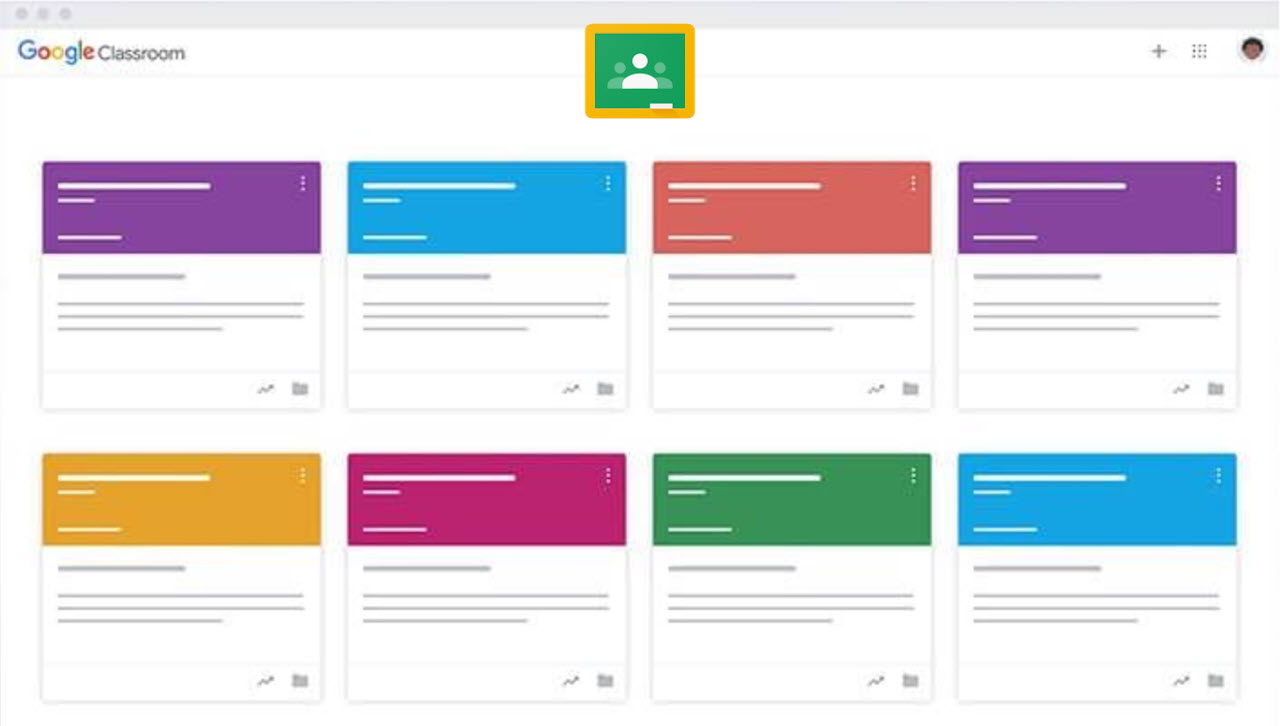
Class customization: Using your Google account, you can create a “class,” which is managed as a folder on your google drive. You can then provide access to a course for your students using a shareable key automatically generated when you create the class.
Assignments: Teachers can assign four types of assignments to their class. There are “Questions,” which function as a quick, gradeless survey for the students. The “Material” option serves as an opportunity to distribute learning content to the students, as you can assign resources and reading materials for the students to review before an assessment. “Quizzes” are automatically marked assessments of student performance, built in Google Forms, with the marks imported to Google Classroom. The teacher and the students can see their marks immediately following submission. Finally, “Assignments” is an option for teachers to either upload a file or create one online and issue it to the students in the class.
Integration with Google Workspace: With all files being stored on Google Drive, you can peruse your entire class’s database from any device and trust that every change is automatically backed up. When using Google Docs to create an assignment, Google Classroom’s integration will provide the option to “share” individual copies with class students at the teacher’s request.
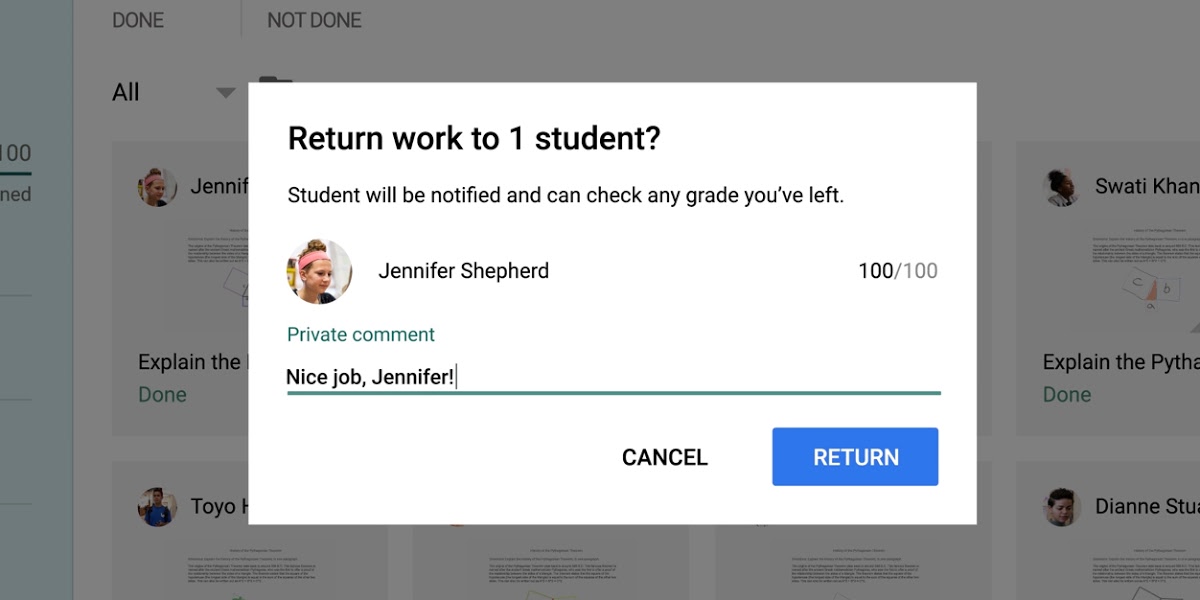
Tasks and Assignments: When a student returns a completed assignment to the teacher, this document will have the “View” status (a signal to the teacher that the work needs to be checked). The teacher can return the assignment for revision or immediately assign a grade.
Assignment Analytics: Google Classroom provides the functionality to view each student’s progress and review past assignment performance.
Classroom Communication: Teachers can communicate with their class by creating announcements that all the students can view. You can also leave comments for each assignment so that a student can receive feedback for their work. Teachers and students can also communicate over Gmail, as it is part of the platform.
Mobile Capable: Google Classroom has a mobile app for iOS and Android. Students can access the course contents, download and upload assignments, and take part in examinations through its use. Teachers use the app to create or upload content, review homework and give grades.
Accessibility for the Visually Impaired- Google Classroom is accessible for the visually Impaired by enabling screen reading programs. For example, VoiceOver was created for iOS devices and TalkBack for Android.
AI tools for teachers: Gemini in Classroom is included at no cost in every Google Workspace for Education edition. It gives teachers more than 30 AI tools that generate lesson content, differentiated materials, and quiz drafts.
RELATED: Which Video Conference Software Works for Your Virtual Classroom?
Advantages of Google Classroom for Virtual Learning
+Intuitive Interface: The developers have simplified the interface of Google Classroom as much as possible so that teachers, students, and their parents can intuitively access a class in minutes without technical skills and maximizing class time.
+Helpful Hints: Google Classroom provides plentiful task-specific hints, such as how to create a course or test, where to see the results of students - so that you can quickly master its capabilities.
+Google Workspace Integration: Google Classroom works with Google Drive for storing files, Google Docs for publishing text lectures, presentations, and polls, Google Meet for video calls, and Google Calendar for scheduling, among other popular virtual tools.
+Teamwork: Several teachers can work on the course at once. One teacher may teach a class, while another is uploading documents for the lecture, while another helps grade assignments.
+Feedback: The teacher can comment and leave remarks on each submitted assignment and marked quiz. If the student does not understand something, they have the ability to post a question on the general feed and attract the attention of instructors, as well as fellow students.
+Parent Transparency: Guardians can subscribe to email summaries that flag missing work, upcoming assignments, and recent class activity, sent daily or weekly to their Gmail account. This keeps parents close to the teacher’s news and announcements without logging in.
+Mobile Capable: Available as a mobile application that gives instructors and students alike the power of Google Classroom but in the palm of their hands.
RELATED: 3 Best Virtual Meeting Tools
Disadvantages of Google Classroom
-Does not support eLearning standards: SCORM, Tin Can (xAPI), and cmi5. Therefore, courses created in these standards do not work in Google Classroom.
-Limited Quiz Settings: Google Classroom’s quiz design function does not afford many testing options for the teacher. Google Forms can shuffle question order, but it still has no built-in quiz timer, so timed tests need a third-party add-on. Locked mode helps with academic integrity, but it only works on managed Chromebooks, so it is not an option for every class.
-Access Limited to Google: Before starting work, all students must create a Google account. As a rule, some of the students may have questions and difficulties - this delays the beginning of training.
-Bland Design: For each course, the teacher can decide on a laconic cover photo or upload one of their choosing with a colour theme provided by Google. The lack of creativity will ensure that the design for each class, no matter the subject, will remain similar, with few distinguishable features.
-Limited Class Size: A class on a personal Google account caps at 250 members, including teaching staff. A Google Workspace for Education or school account raises that to 1,000, so very large cohorts need the managed edition.
-Limited Video Conferencing Functions: Google Classroom’s most significant disadvantage is the inability to control certain aspects of the lecture. For example, muting unruly students or mics that were accidentally left in operation. Therefore it is harder to take control of a situation during the lesson.
RELATED: Which Video Conference Software Works for Your Virtual Classroom?
Using Google Classroom for Online Teaching and Distance Learning
Google Classroom handles the digital learning workflow online teaching depends on: post materials by topic, schedule assignments with due dates, grade submissions, and keep every file in Google Drive. Each class carries its own Google Meet link, so students join live lessons from the class banner.
A distance learning rhythm that works: post materials on Monday, teach live over Meet, and run Questions as quick comprehension checks in between.
Google Classroom Online: Personal Account vs School Account
Anyone with a Google account can use Google Classroom online at no cost. Schools that adopt Google Workspace for Education unlock higher limits and admin control.
| Capability | Personal Google account | Google Workspace for Education |
|---|---|---|
| Class size | 250 members | 1,000 members |
| Guardian email summaries | Not available | Up to 20 guardians per student |
| Locked mode quizzes | Not available | On managed Chromebooks |
Google Classroom FAQs
Does Google Classroom have a time limit?
No. Assignments carry due dates, not countdown timers. Quizzes built in Google Forms have no built-in timer either; timed tests need a Forms add-on. Locked mode keeps students inside the quiz on managed Chromebooks, but it does not time them.
Is Google Classroom free?
Yes. Any Google account can create and join classes at no cost, and the Google Workspace for Education Fundamentals edition is free for qualifying institutions. Paid editions add security, analytics, and higher limits.
Is Google Classroom the Right Virtual Classroom for You?
If you are looking for an easy-to-use platform to replace your in-person classes, online, Google Classroom is your best bet. Classroom’s integration with the entire Google Workspace allows you to take advantage of Google’s cornucopia of popular and easy-to-use apps, such as Google Meet, Docs, and Calendar. A teacher, their staff, and their students will transition with as little downtime as possible, making Google Classroom one of the leading online learning platforms.
Google Classroom is suitable for schools with smaller class sizes and will help launch blended learning. With the ability to combine study materials into a course to a handy calendar for scheduling classes, there is a lot of functionality ready to make the transition to remote learning in an online classroom as smooth as possible.
However, Google Classroom is less suitable for universities and larger enterprises - there will not be enough functionality to maintain and manage larger class sizes. For example, it will not be possible to divide students into faculties or for school administrators to manage the classes of several teachers.


